

Hosted UI widgets
Redirect users to a branded self-serve portal for organization settings, member management, SSO, SCIM, domains, and user profiles.
Your customers, especially workspace administrators, want to manage organizations and users for their members. Scalekit provides Hosted UI widgets, a ready-made, branded portal at <SCALEKIT_ENVIRONMENT_URL>/ui/, so they can do this themselves without you building custom admin UIs.
To integrate hosted widgets, redirect your organization members to the Hosted Widgets URL:
<SCALEKIT_ENVIRONMENT_URL>/ui/ # https://your-app-env.scalekit.com/ui/Scalekit verifies the organization member’s access permissions and automatically controls what they can access in the widgets. The widgets inherit your application’s branding and support your custom domain.
When to use Hosted UI widgets
Section titled “When to use Hosted UI widgets”Use Hosted UI widgets when you want customers to self-manage their organizations and accounts without you building custom UIs.
- Advantages: Enterprise customers can self-serve member management, SSO setup, SCIM provisioning, domain verification, session policy, and their own profiles. Permissions and feature entitlements are handled automatically. The portal stays up to date with new Scalekit capabilities.
- Trade-offs: If you build equivalent UIs yourself, you must implement the full set of management screens, enforce the corresponding permissions, and keep the interfaces current as features evolve.
- Custom frontends: You can use Hosted UI widgets even if you handle login and signup in your own frontend. After users complete authentication through your flow, redirect them to the widgets portal for self-service.
Signup/login widgets
Section titled “Signup/login widgets”Signup and login widgets give users an entry point to authentication before they access the rest of Hosted Widgets. Use these pages as managed, branded auth screens without building custom UI.
-
Redirect your customers to Scalekit’s auth endpoint
Section titled “Redirect your customers to Scalekit’s auth endpoint”Pass
promptin the authorization URL to decide which hosted auth screen appears for your customers.Authorization URL (login) <SCALEKIT_ENVIRONMENT_URL>/oauth/authorize?response_type=code&client_id=<SCALEKIT_CLIENT_ID>&redirect_uri=<CALLBACK_URL>&scope=openid+profile+email+offline_access&state=<RANDOM_STATE>&prompt=loginPass
prompt=loginto show the login page. Your customers will land on<SCALEKIT_ENVIRONMENT_URL>/a/auth/login.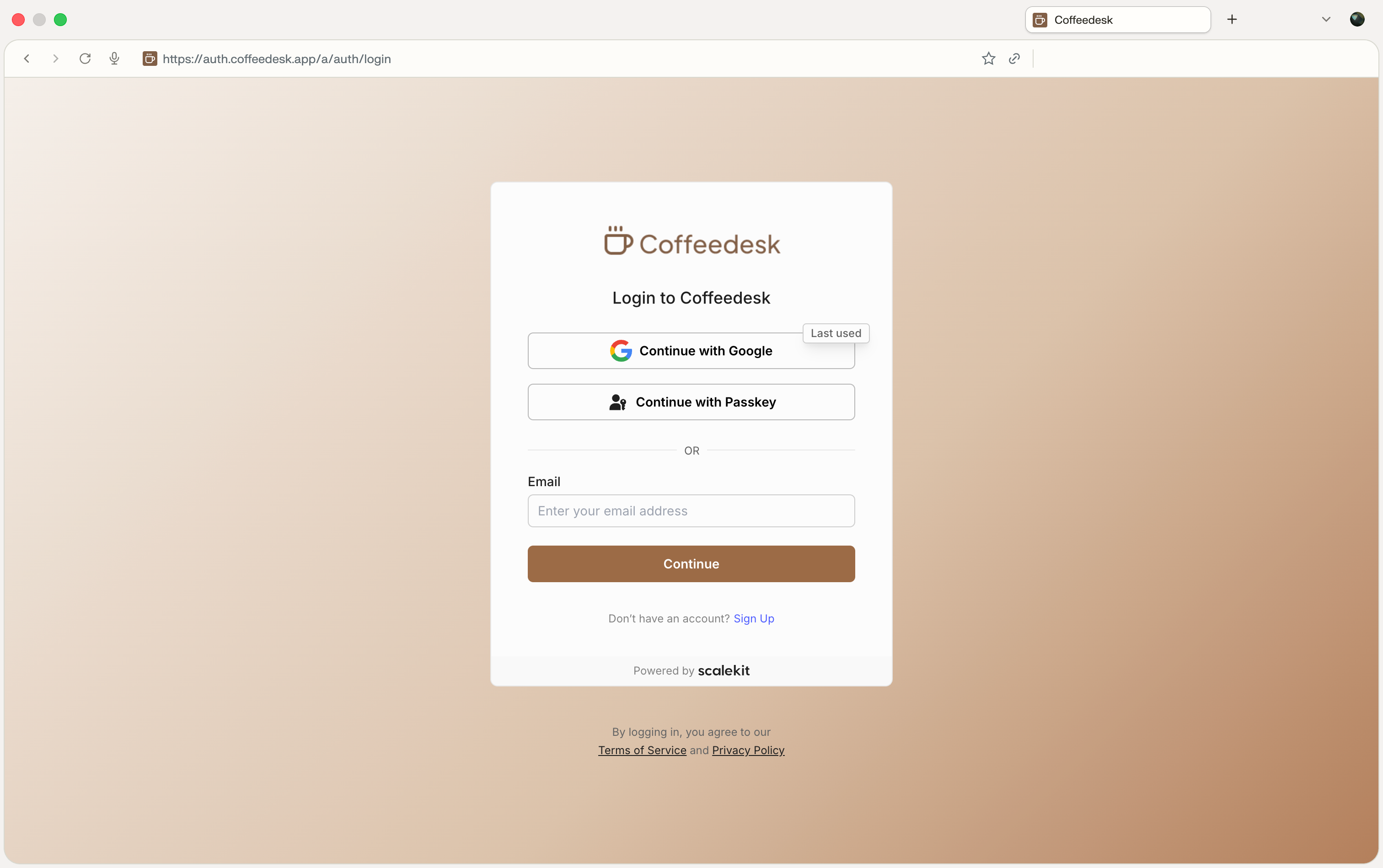
Authorization URL (signup) <SCALEKIT_ENVIRONMENT_URL>/oauth/authorize?response_type=code&client_id=<SCALEKIT_CLIENT_ID>&redirect_uri=<CALLBACK_URL>&scope=openid+profile+email+offline_access&state=<RANDOM_STATE>&prompt=createPass
prompt=createto show the signup page. Your customers will land on<SCALEKIT_ENVIRONMENT_URL>/a/auth/signup.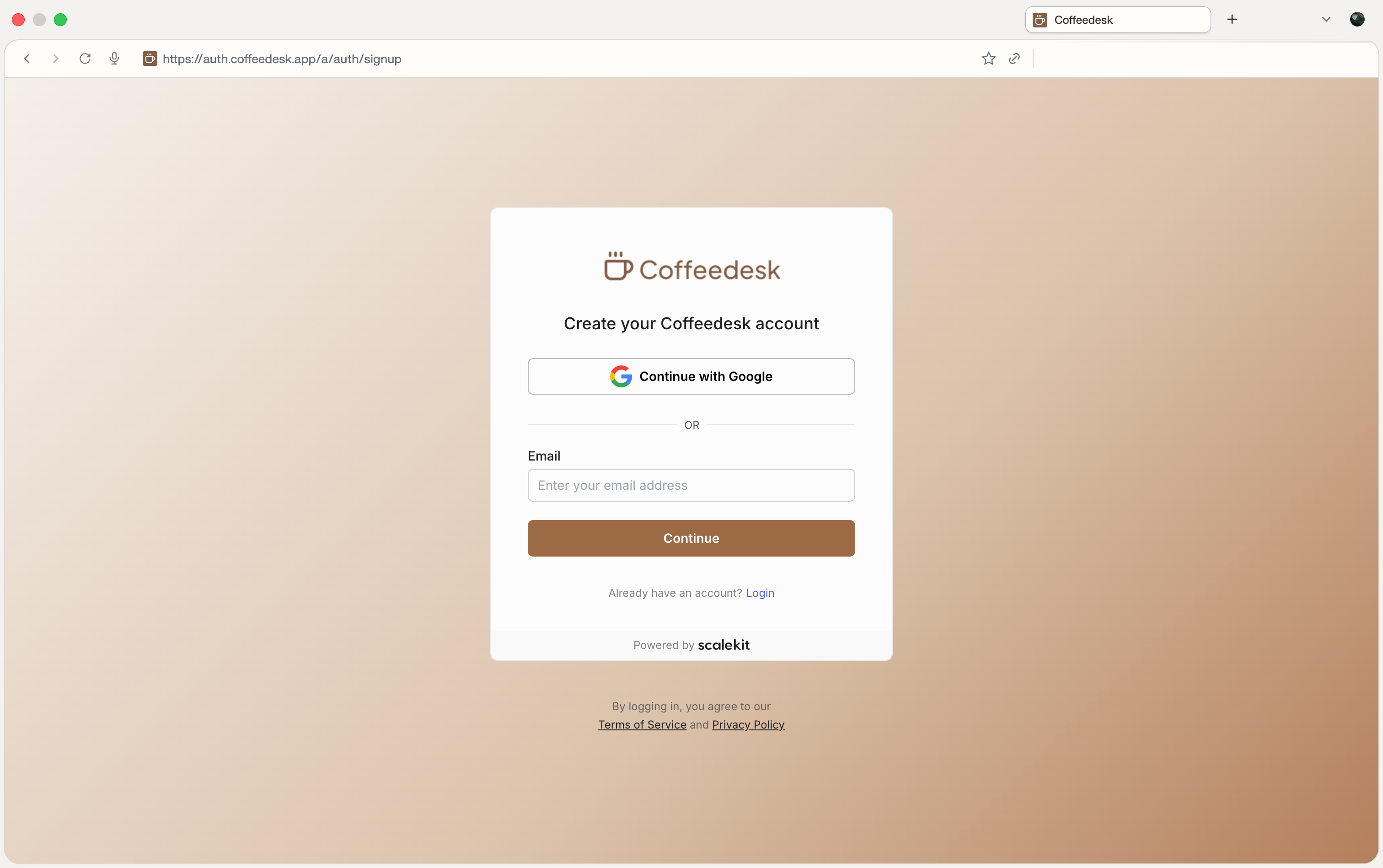
For complete URL parameters and SDK examples, see Initiate user signup or login.
Organization widgets
Section titled “Organization widgets”Organization widgets let your customers manage their organization’s settings, members, and configurations. These widgets are access-controlled using Scalekit permissions and feature entitlements. A widget appears only if the user has the required permissions and the organization has the corresponding feature enabled.
-
Manage organization settings
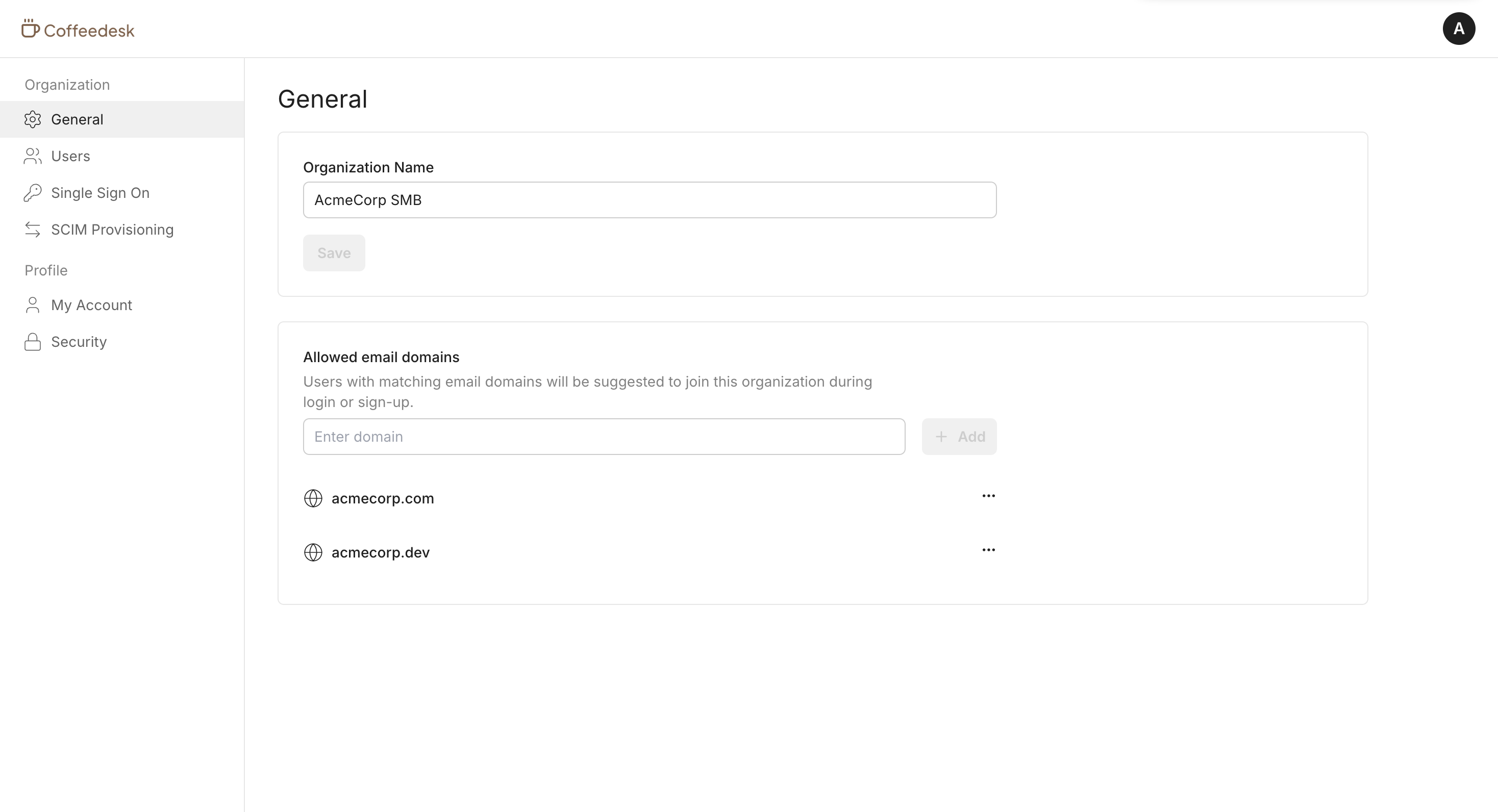
Section titled “Manage organization settings”Your customers can view and manage their organization profile, including allowed email domains. Navigate to Organization settings to update organization details.
-
Manage organization members
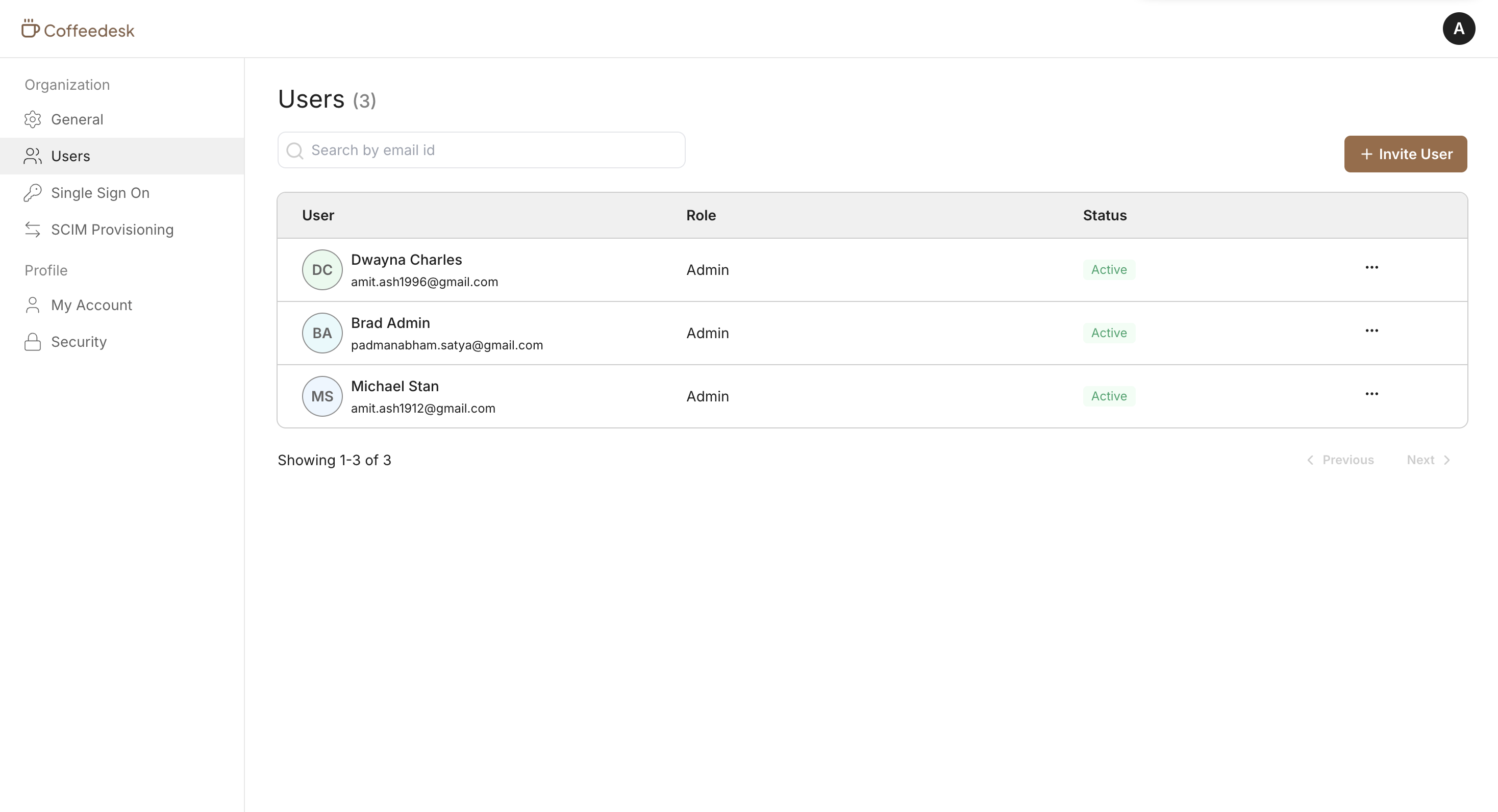
Section titled “Manage organization members”Your customers can view organization members, invite new members, manage roles, and remove members from the organization. The Member management widget provides a complete view of their team.
-
Configure SSO for the organization
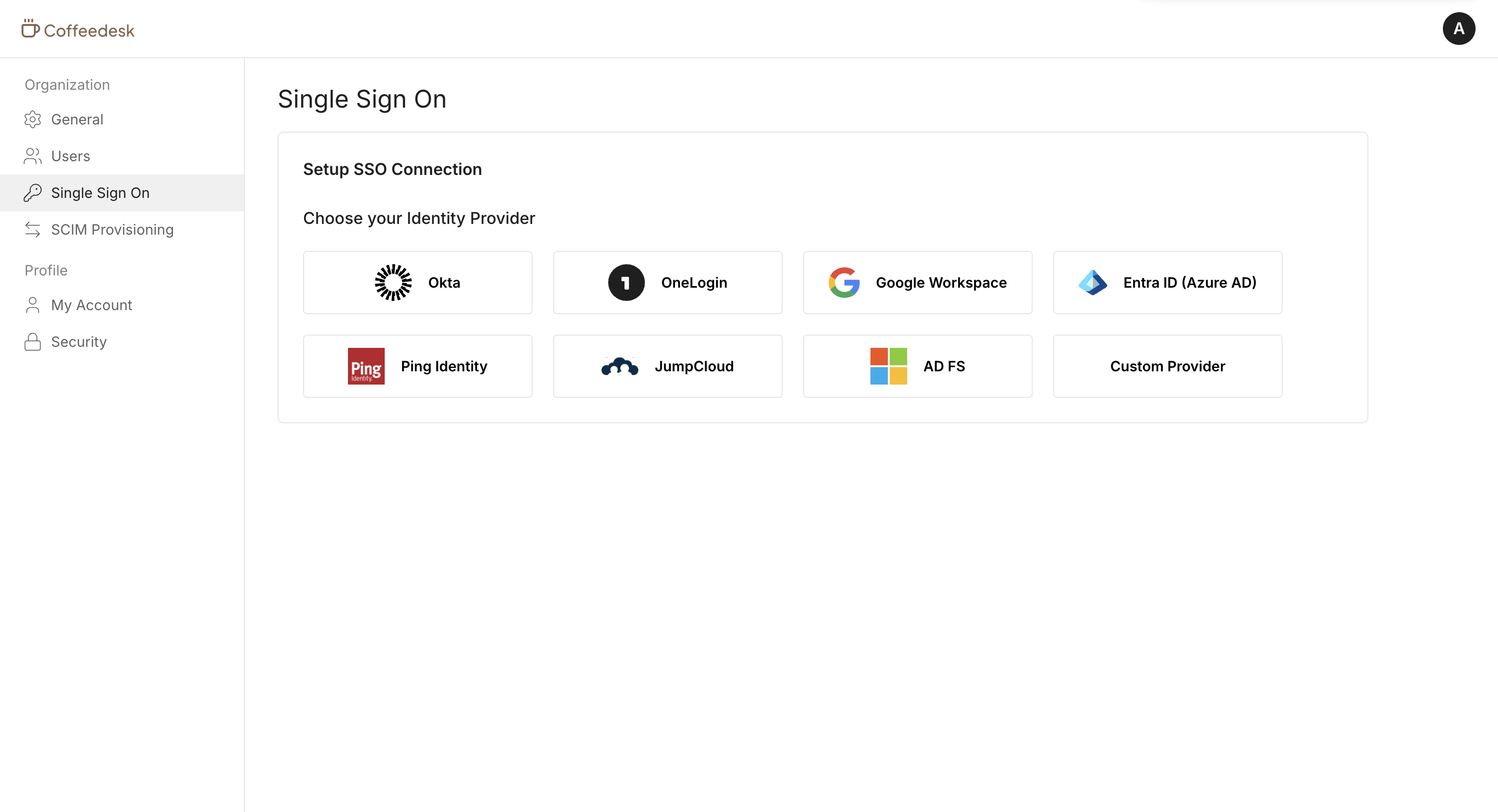
Section titled “Configure SSO for the organization”Your customers can set up and manage Single Sign-On for their organization. The widget includes a setup guide tailored to their identity provider, making it easy to connect their SSO connection.
-
Configure SCIM for the organization
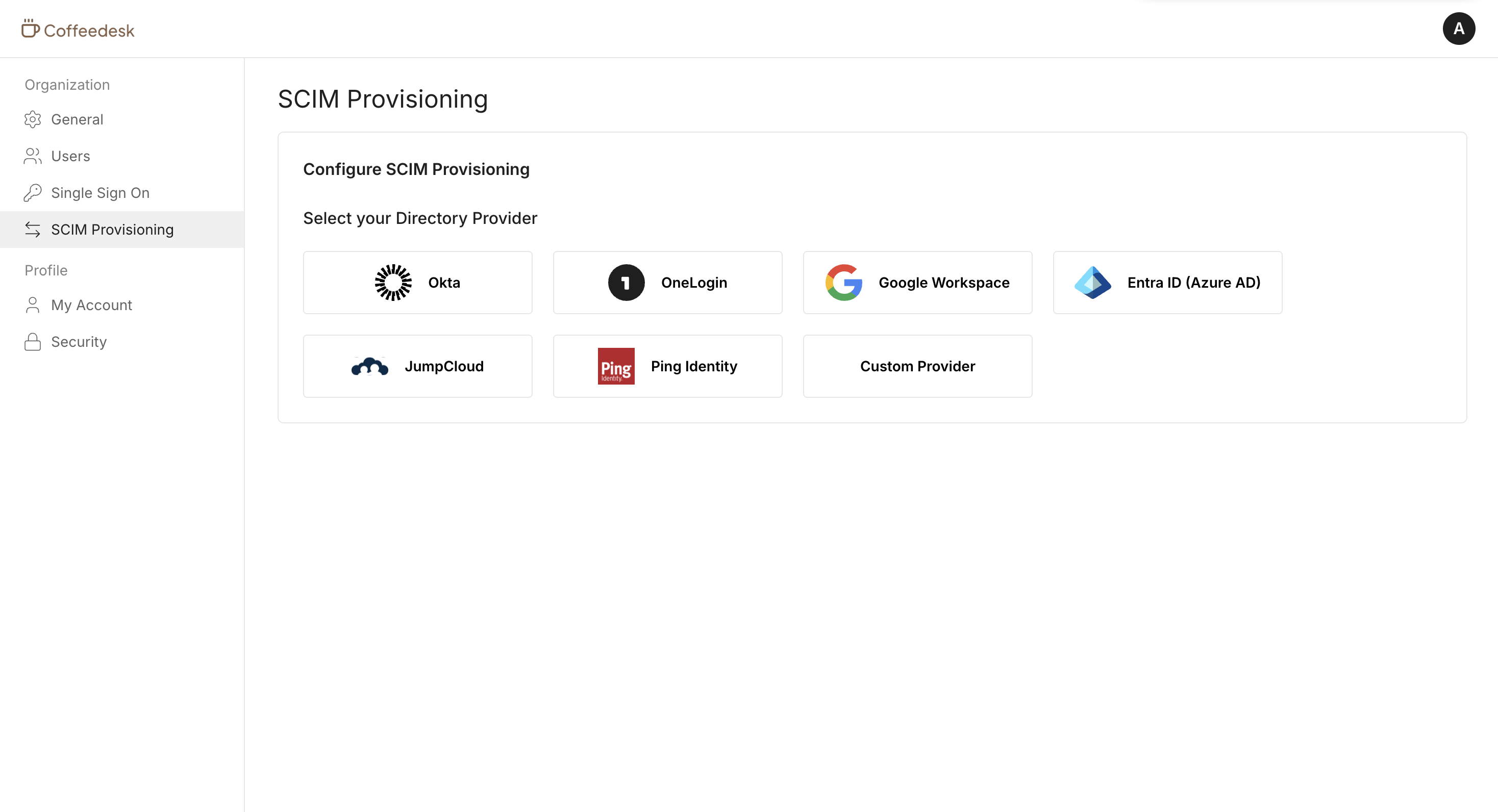
Section titled “Configure SCIM for the organization”Your customers can set up and manage SCIM provisioning for their organization. The widget includes a setup guide tailored to their identity provider to automate user and group provisioning.
-
Verify organization domains
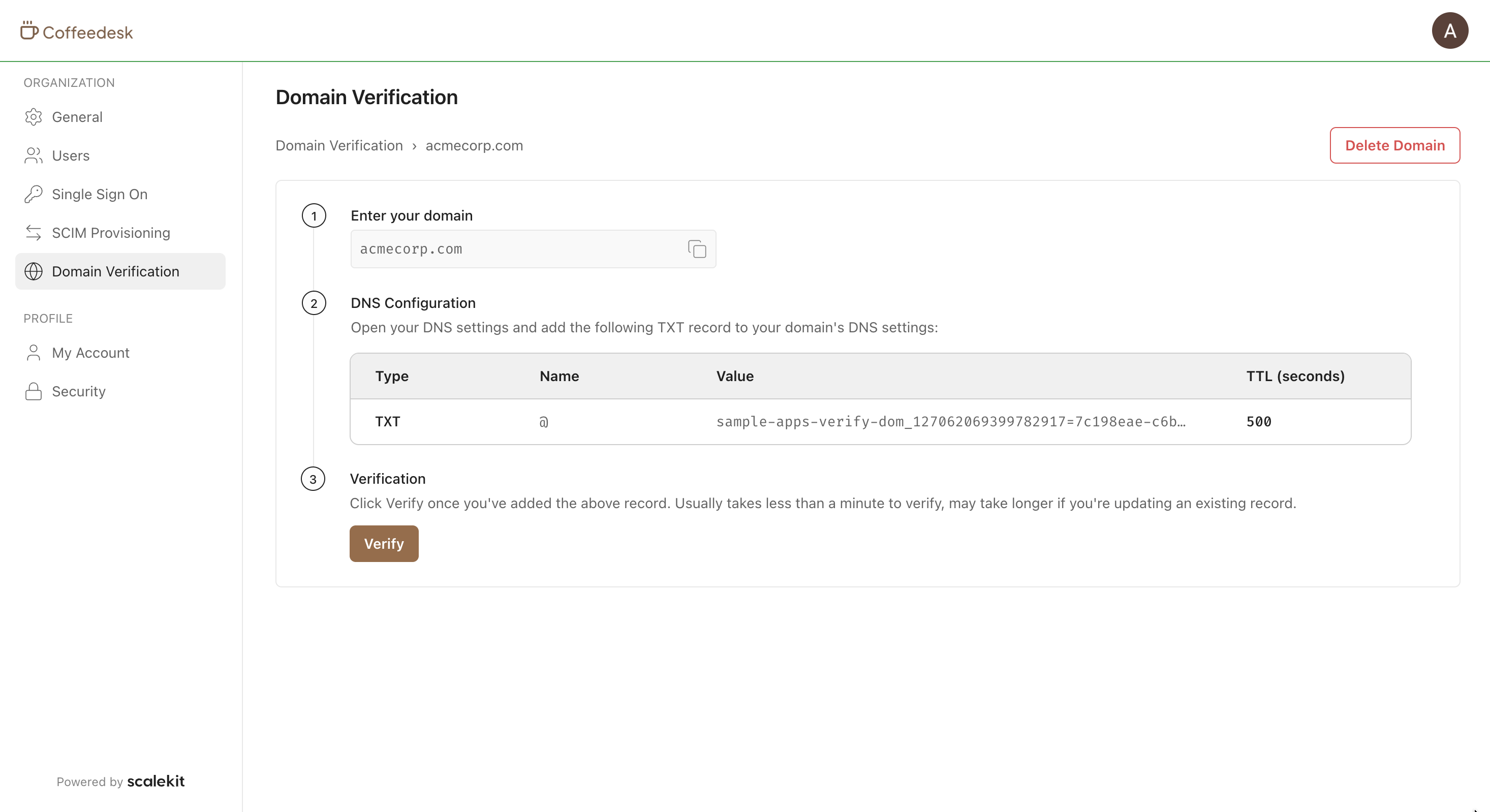
Section titled “Verify organization domains”Your customers can add and verify the domains they own, enabling Home Realm Discovery and SCIM provisioning for their organization. Learn more
After entering a domain, the widget displays the DNS TXT record to publish. Scalekit verifies ownership in the background and marks the domain as verified once the record propagates.
-
Manage session policy
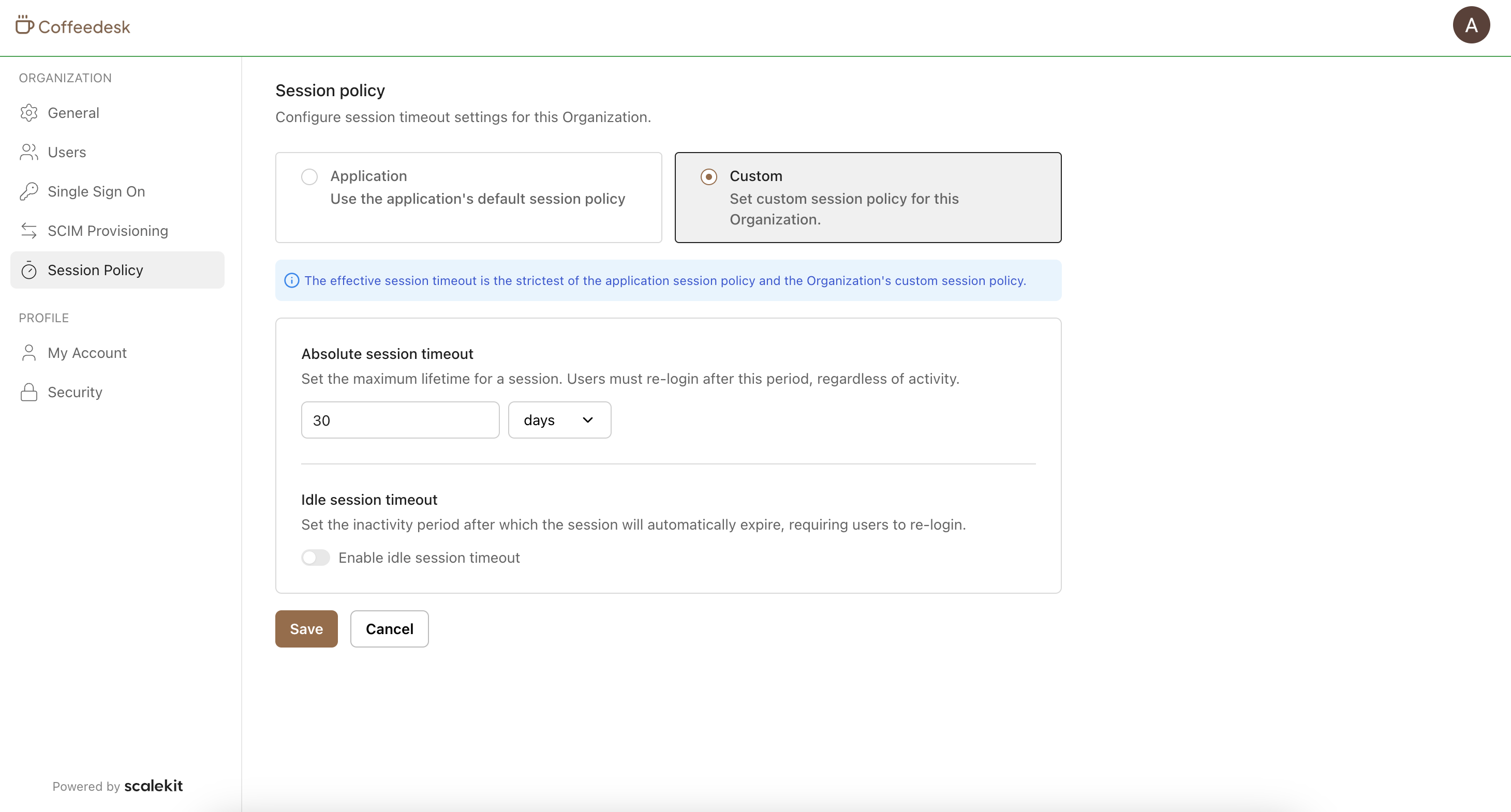
Section titled “Manage session policy”Your customers can view and configure their organization’s session policy, setting custom absolute and idle session timeouts that override your application defaults. Scalekit always enforces the stricter of the two.
User widgets
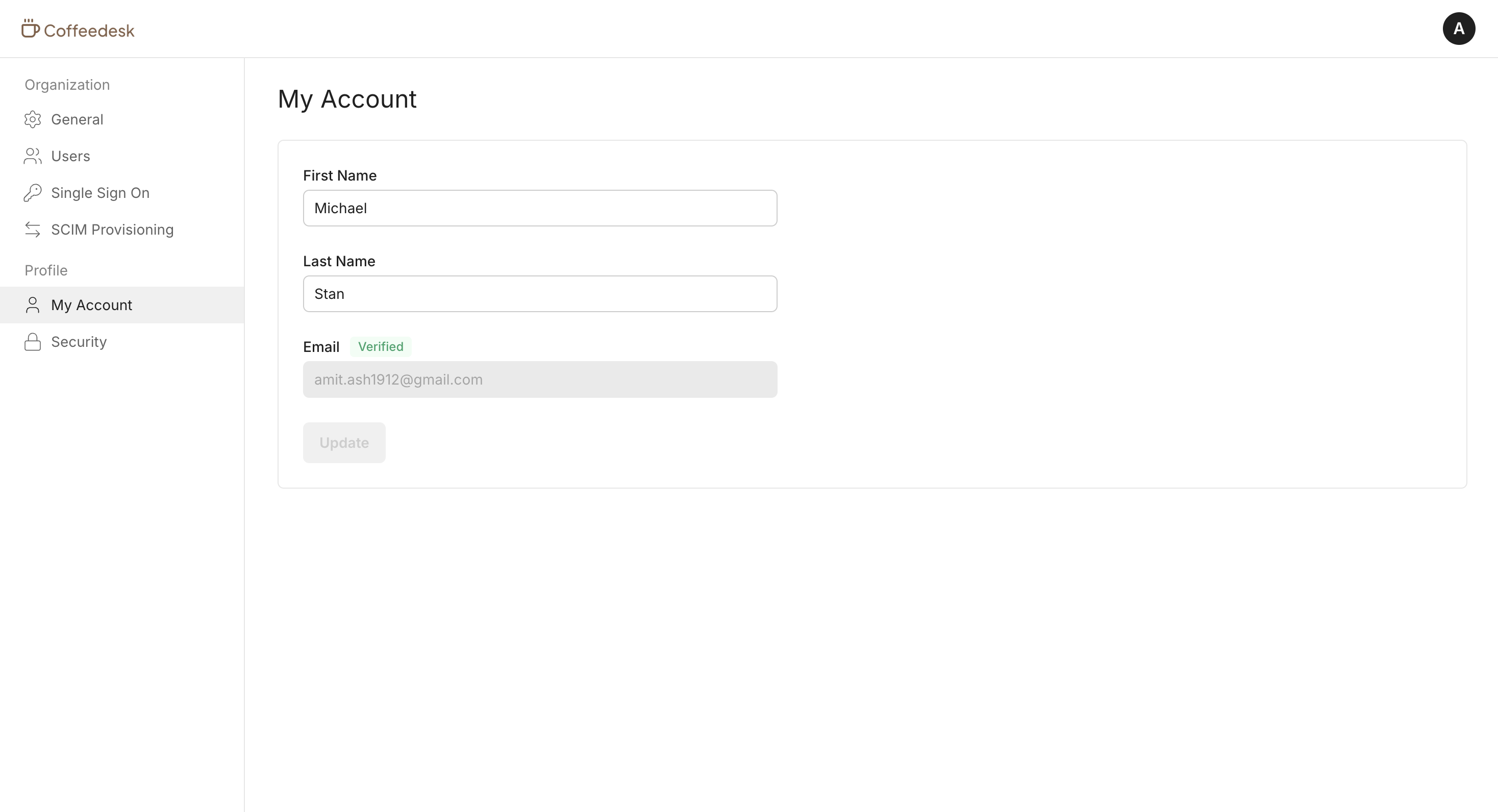
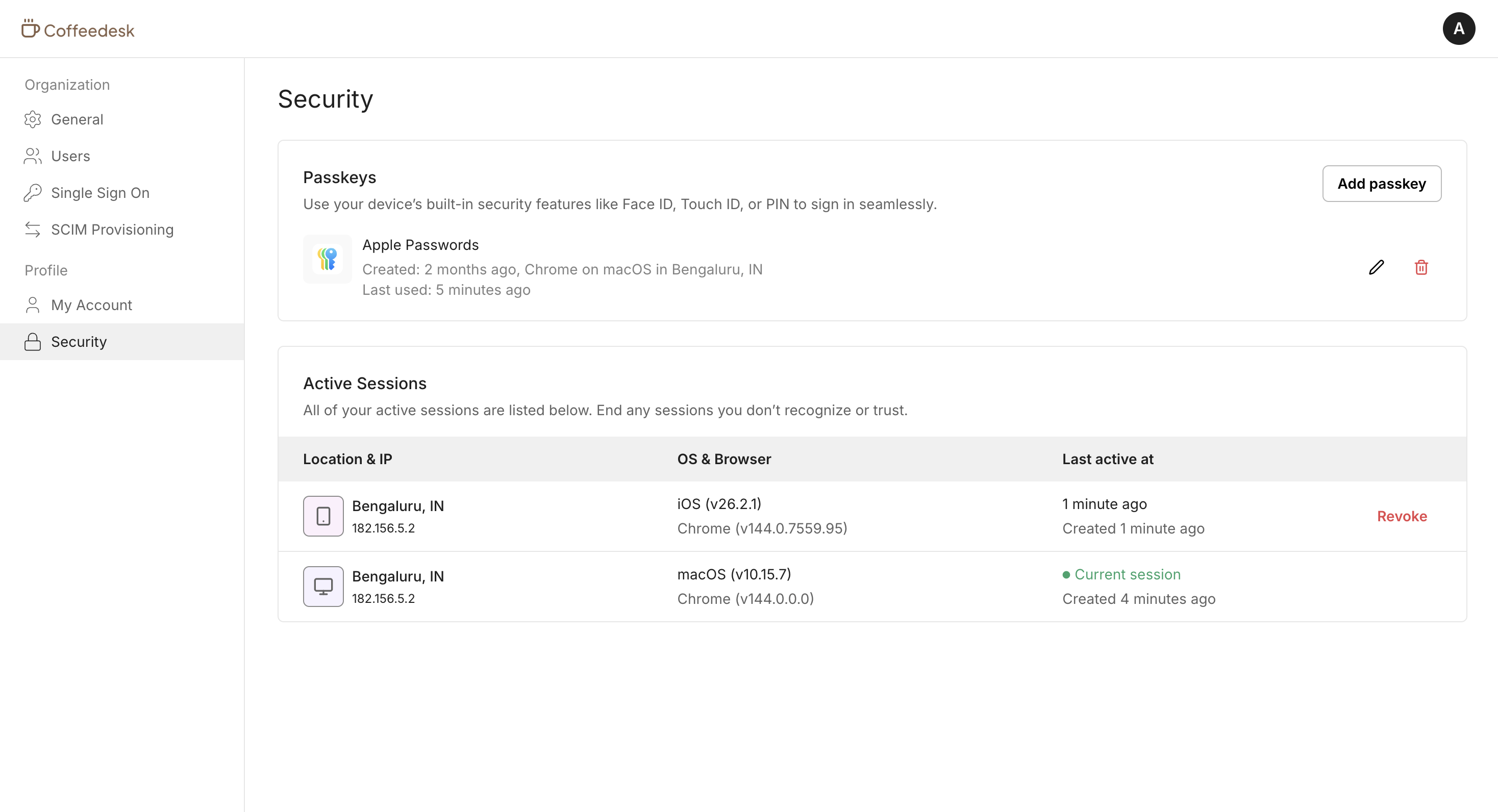
Section titled “User widgets”User widgets let your customers manage their personal profile and security settings. These widgets are accessible to all authenticated users and are not controlled by organization-level feature entitlements or Scalekit permissions.
-
Manage profile
Section titled “Manage profile”Your customers can view and manage their personal profile information, including their name, email, and other account details.
-
Manage security
Section titled “Manage security”Your customers can register and manage passkeys, view active sessions, and revoke sessions. The User security widget helps them maintain account security.
Access management
Section titled “Access management”Hosted Widgets enforce access using Scalekit permissions. You can map these permissions to any application roles assigned to the end user. When a user accesses Hosted Widgets, Scalekit checks their permissions and shows the available widgets.
| Permission | Purpose |
|---|---|
sk_org_settings_read | View organization profile and settings |
sk_org_settings_manage | View and modify organization profile and settings |
sk_org_users_read | View users in an organization |
sk_org_users_invite | Invite new users to an organization |
sk_org_users_delete | Remove users from an organization |
sk_org_users_role_change | Change roles of users in an organization |
sk_org_sso_read | View SSO configuration for an organization |
sk_org_sso_manage | View and modify SSO configuration for an organization |
sk_org_scim_read | View SCIM configuration for an organization |
sk_org_scim_manage | View and modify SCIM configuration for an organization |
sk_org_session_policy_read | View session policy for an organization |
sk_org_session_policy_manage | View and manage session policy for an organization |
Branding & customization
Section titled “Branding & customization”Hosted Widgets can be customized to match your application’s branding. Hosted Widgets use your application logo, favicon, primary color, and more to look like an extension of your app.
You can also change the Hosted Widgets URL to match your application URL by setting up a custom domain.
Common Hosted Widgets scenarios
Section titled “Common Hosted Widgets scenarios”What happens if a user does not have a session?
If no session exists, Scalekit redirects the user to your application’s login endpoint so your app can start the authentication flow again. If you manage sessions yourself, redirect unauthenticated users to your login flow before they reach the widgets.
What happens when a user logs out from Hosted Widgets?
When a user logs out from Hosted Widgets, they are redirected to your configured post-logout destination. This can leave your app session and the Scalekit session out of sync.
If you manage sessions in your own backend instead of using Scalekit’s default session management, handle logout propagation yourself. Use one of the following approaches:
- Implementing back-channel logout so Scalekit can notify your app about session termination.
- Listening for the user logout webhook to get notified about session termination.